SecuSteri Print
Click Print on any device — the labels come out of the barcode printer in your sterilization room.
What SecuSteri Print does
SecuSteri generates the label for every instrument in a cycle — cycle number, dates, and the code that ties each instrument to its sterilization record. SecuSteri Print is the small program that sends those labels to your barcode printer: it runs on a PC the printer is connected to and prints whatever SecuSteri sends it. Because the job travels through SecuSteri rather than through the device you are holding, you can print from a tablet, a phone or any computer — no print dialog, no driver on every device. You choose which printer each autoclave's labels go to — one printer per autoclave, or one printer shared by several.
Before you start
- A barcode printer connected to a Windows PC on your premises and installed on that PC — if Windows can print a test page on it, it's ready. The PC needs internet access.
- Administrator rights on that PC: Windows asks an administrator to approve the installation.
- An email address on your organization profile — it becomes SecuSteri Print's sign-in. Without it, SecuSteri Print can't be set up.
- A SecuSteri admin account. Doing the setup on the printer PC itself is easiest: you can copy the password from SecuSteri and paste it into SecuSteri Print.
Setting up SecuSteri Print on Windows
Set up SecuSteri Print in Organization settings
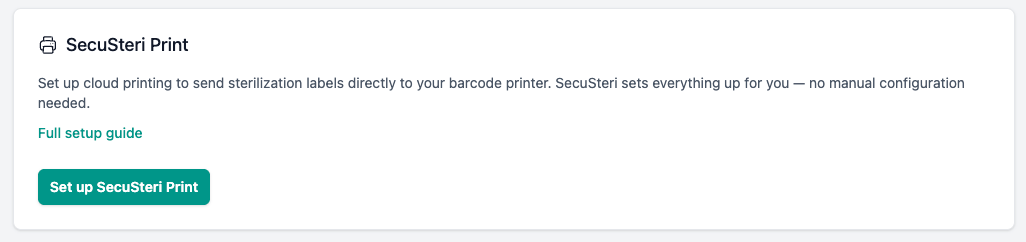
Open Settings → Organization settings. In the SecuSteri Print card, click Set up SecuSteri Print. SecuSteri creates your printing account and the card switches to Connected.
Download the installer
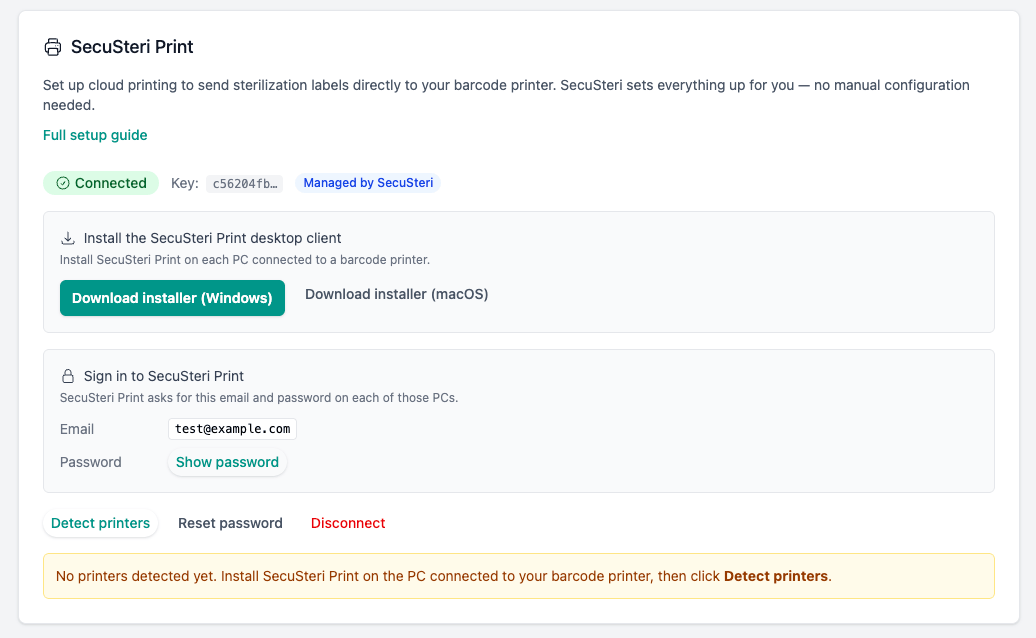
Click Download installer (Windows). The same installer serves every PC — download it again whenever you add a printer PC.
Install SecuSteri Print
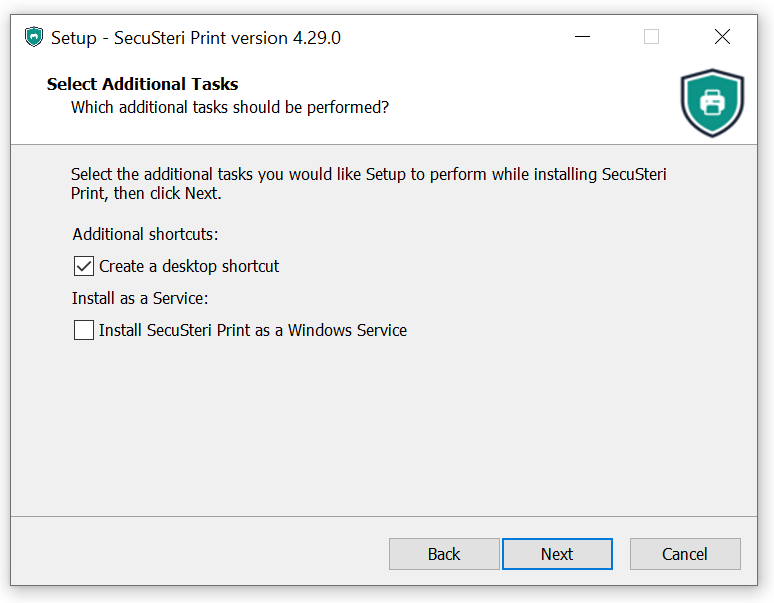
Run the downloaded file. Windows asks for permission to make changes to your device — the verified publisher is PrintNode Limited, the printing service behind SecuSteri Print; click Yes. Accept the license and keep the suggested folders. On Select Additional Tasks, leave Install SecuSteri Print as a Windows Service unchecked: in that mode SecuSteri Print runs without its window and ignores the printer settings you made in Windows, such as the label size. It is only meant for PCs where several people are signed in to Windows at the same time. A desktop shortcut is up to you. Click Install, then Finish with Launch SecuSteri Print ticked. SecuSteri Print starts with Windows from now on.
Sign in
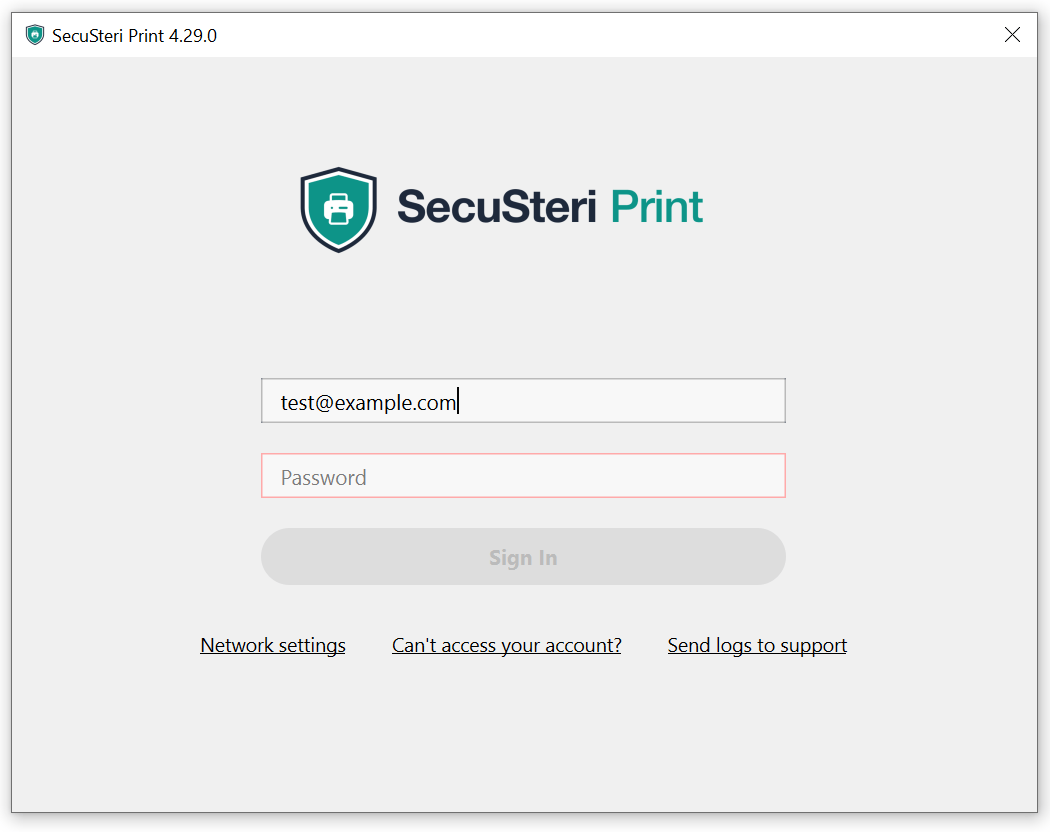
SecuSteri Print opens its sign-in window. In the SecuSteri Print card, the Sign in to SecuSteri Print section shows the email; click Show password to see the password. Enter both and click Sign In.
Optional: share only your barcode printer
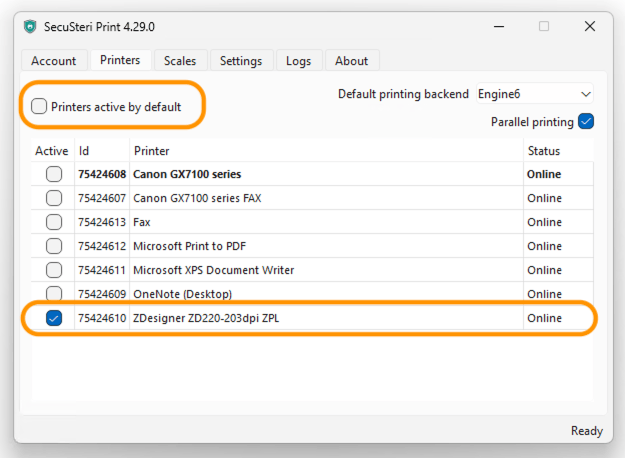
By default, SecuSteri Print shares every printer on the PC with SecuSteri — the PDF writer, the fax, the office printer — and any printer added later too, so the list in SecuSteri grows, especially with several PCs. In SecuSteri Print, open the Printers tab and untick Printers active by default, so printers added later stay off until you switch them on. Then make sure Active is ticked for your barcode printer only.
Detect your printers in SecuSteri
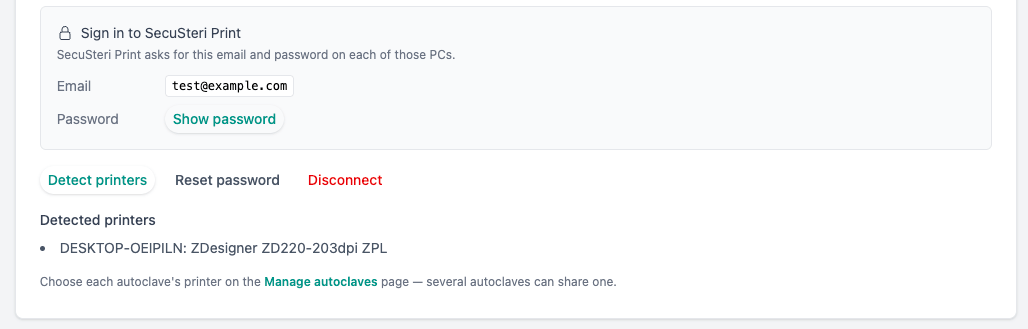
Back in the SecuSteri Print card, click Detect printers. Your barcode printer appears in the list. Added a PC or changed the previous step later? Click Detect printers again — printers that are no longer shared disappear from the list.
Choose each autoclave's printer
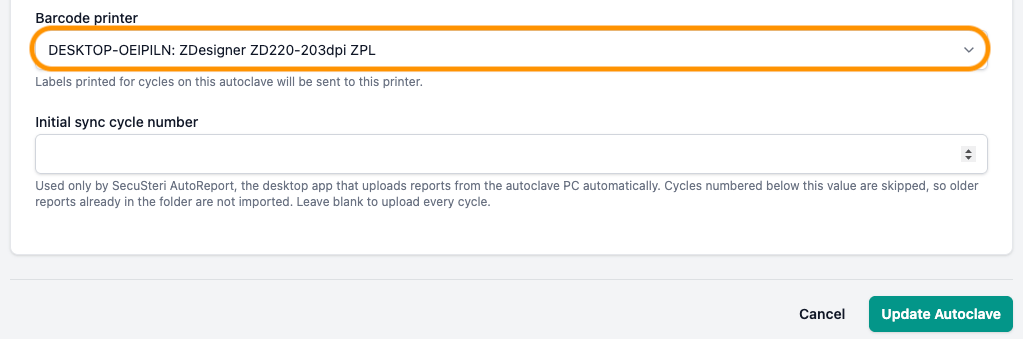
Open each autoclave in SecuSteri and pick its printer under Barcode printer. Labels for that autoclave's cycles print there. Several autoclaves can share one printer.
Print labels
On a cycle — in the cycle list or on the cycle's own page — click Print All. The labels print on that autoclave's printer, whichever device you clicked from.
SecuSteri Print is also available for macOS — Download installer (macOS), then the same steps.
Troubleshooting
- My printer doesn't appear after Detect printers.
- SecuSteri Print lists exactly the printers Windows shows under Devices and Printers on that PC; it doesn't search the network. So check, in order: the printer is installed in Windows on that PC (a network printer works too, once it's installed there); SecuSteri Print is signed in; on its Printers tab the printer's Active box is ticked. Then click Detect printers again.
- I clicked Print but nothing came out.
- The printer PC must be on, with SecuSteri Print running: look for its icon in the system tray, a teal shield with a printer — Windows often hides new icons behind the ^ arrow next to the clock. Right-click it to open the window; the Account tab shows which account and computer it is connected with. On the Printers tab, the barcode printer's Status must be Online. In SecuSteri, the cycle's autoclave must have a printer chosen.
- The printer list in SecuSteri is long.
- On each printer PC, share only the barcode printer (see the optional step above), then click Detect printers — the others disappear from the list.
- We print from several PCs.
- Install SecuSteri Print on each and sign in with the same email and password. Every PC's shared printers appear in SecuSteri; then choose each autoclave's printer — one per autoclave, or one shared by several.
- What does Reset password do?
- It creates a new SecuSteri Print password and invalidates the old one, so every PC signed in with the old password has to sign in again with the new one.
- Our IT team or antivirus blocks it.
- SecuSteri Print needs an administrator's approval once, at installation; the installer is signed by PrintNode Limited, the printing service behind SecuSteri Print. Some antivirus programs flag it by mistake — IT can allow it. It connects out on ports 443 and 6123; if it can't connect, IT can test by opening https://api.printnode.com/ping in a browser on that PC.
- My printer appears twice in the list.
- SecuSteri Print is installed on two PCs, or for two Windows users, and each shares the printer under its own ID. Either one works: choose one for the autoclave. To keep a single entry, share the printer from one PC only (the optional step above), then click Detect printers again.
- I renamed the printer in Windows and labels stopped printing.
- Renaming makes it a new printer for SecuSteri Print. Click Detect printers, then check each autoclave's printer.
- Is this the same program as SecuSteri AutoReport?
- No. AutoReport sends your autoclave's reports to SecuSteri; SecuSteri Print sends labels from SecuSteri to your printer. They can run on the same PC, each with its own shield in the system tray: AutoReport's has a sparkle and changes color with its status, SecuSteri Print's has a printer.
Still stuck? Write to support@secusteri.com — we read every message.
See also
Try SecuSteri free for 30 days
Record your first cycle today and print its labels from any device.