SecuSteri AutoReport
Your autoclave's own report, in SecuSteri before anyone touches a keyboard.
What AutoReport does
SecuSteri reads the report file your autoclave writes at the end of every cycle — the machine's own data, not a transcription — and turns it into a cycle record ready to fill and sign. AutoReport is the small desktop app that delivers that file the moment the cycle ends: it watches the folder your autoclave saves reports to and uploads each new one automatically. No USB stick, no manual upload, no typing.
Before you start
- One report from your autoclave uploaded by hand and recognized by SecuSteri — that confirms your model is supported before you install anything. If it isn't recognized, the file reaches our team automatically and we add support; there is nothing more to send.
- The PC that can see the folder your autoclave saves reports to — usually the PC connected to it, or one that reaches its network share.
- A SecuSteri admin account, signed in on that PC — the installer is prepared for your organization and downloaded from Organization settings.
Installing AutoReport on Windows
Open Organization settings and set up AutoReport
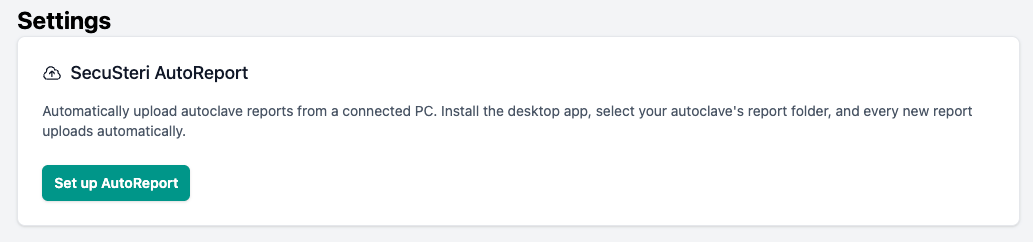
On the autoclave PC, sign in to SecuSteri and open Settings → Organization settings. In the SecuSteri AutoReport card, click Set up AutoReport. SecuSteri creates a key for your organization and the card switches to Active with download buttons.
Download the installer
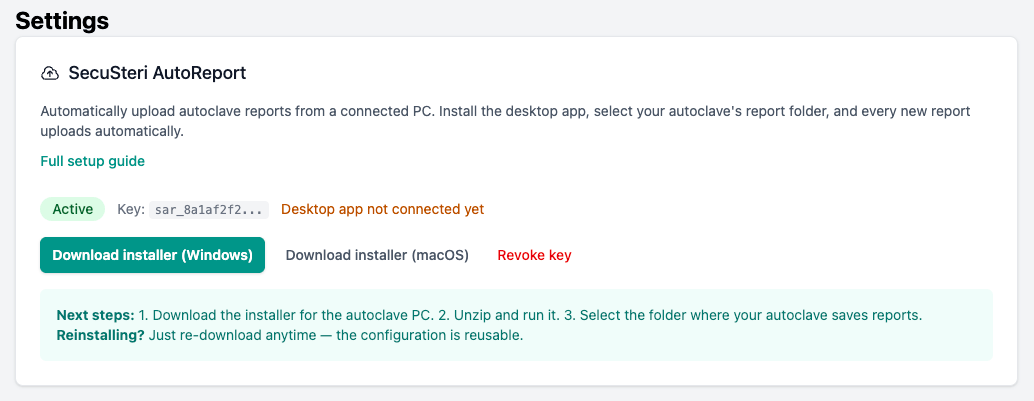
Click Download installer (Windows). You get a ZIP prepared for your organization — it already contains your key, so keep it private.
Unzip, run, and approve the Windows warning
Right-click the ZIP → Extract All, then double-click the installer. Windows shows a blue “Windows protected your PC” dialog. It appears because the installer is signed with a certificate Windows doesn't already know — not because anything is wrong. Click More info, then Run anyway, and follow the installer.
Choose the folder your autoclave saves reports to
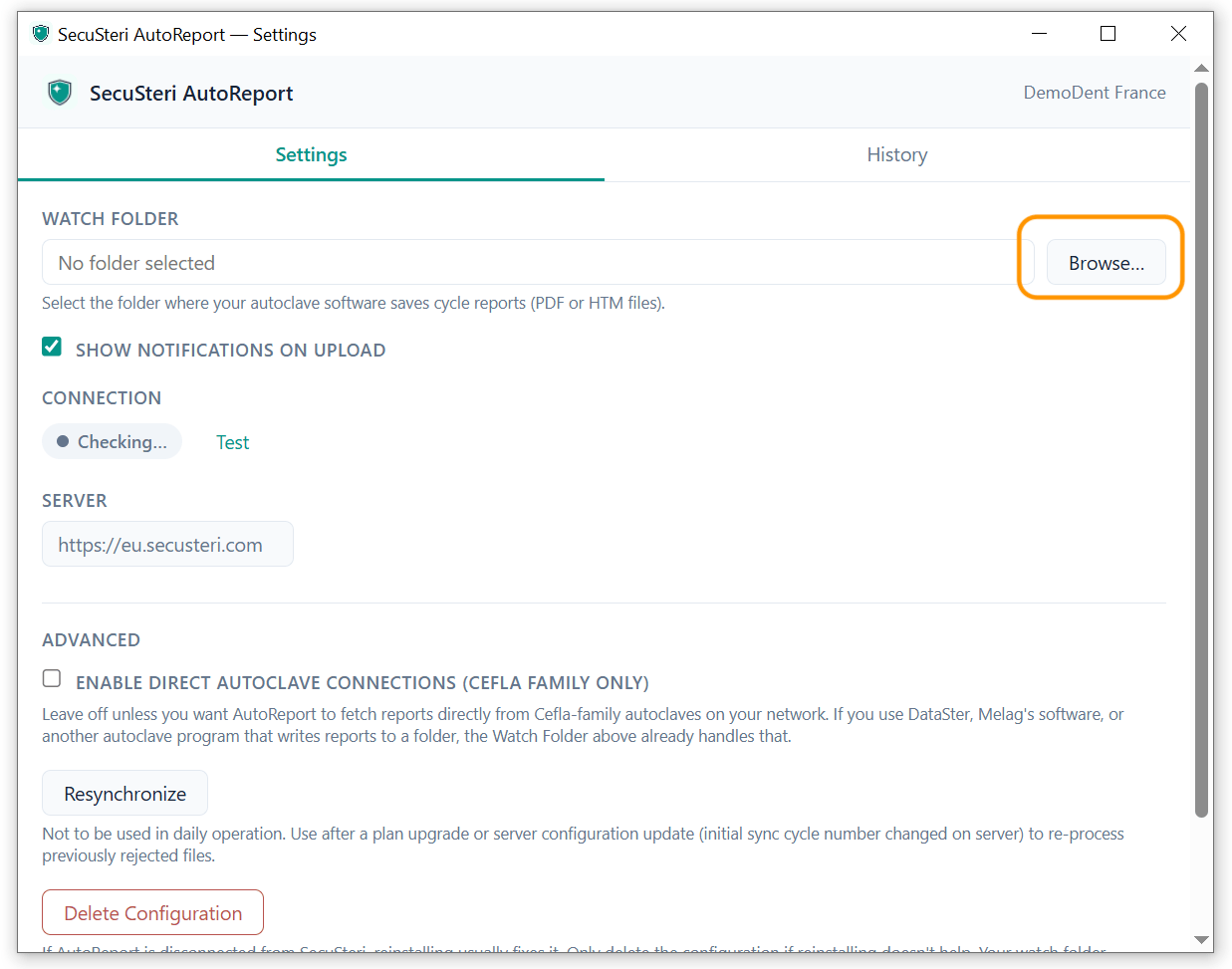
AutoReport starts, places a shield icon in the system tray and asks for one thing: the folder where your autoclave saves its reports. The vendor's technician usually set this up at installation — a local folder or a network share on this PC. If you don't know it, check the export settings on the autoclave itself or ask your technician. Network folders work too; validating one can take a few seconds.
Confirm it works
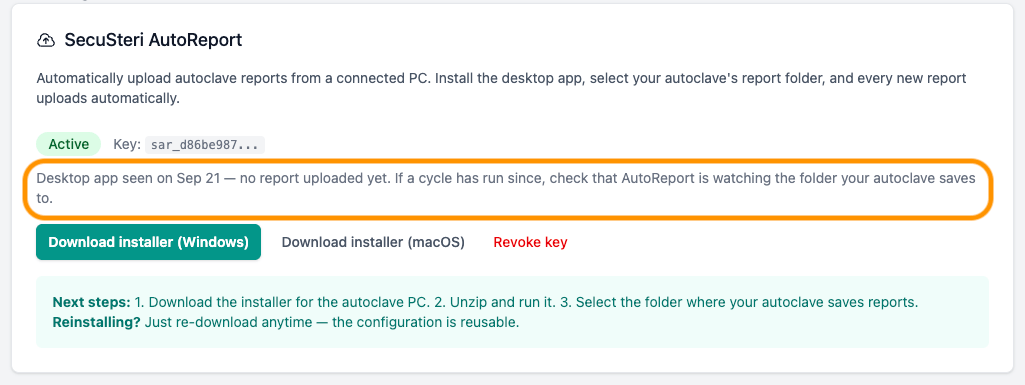
The tray icon turns green once AutoReport is watching the folder and can reach SecuSteri. Back in Organization settings, the AutoReport card confirms the desktop app has been seen; after your next cycle finishes it shows when the last report was uploaded, and the cycle appears in SecuSteri. If a cycle has run and nothing arrived, the folder AutoReport is watching isn't the one the autoclave writes to — right-click the icon → Settings… to change it.
Optional: skip old reports
If the report folder already holds months of past cycles, open each autoclave in SecuSteri and set Initial sync cycle number to the current cycle count. Reports numbered below it are skipped. Leave it blank to upload everything.

AutoReport is also available for macOS — Download installer (macOS). Automatic updates on macOS are pending notarization; to update, download again from Organization settings.
Optional: read reports directly from a Castellini or Anthos autoclave
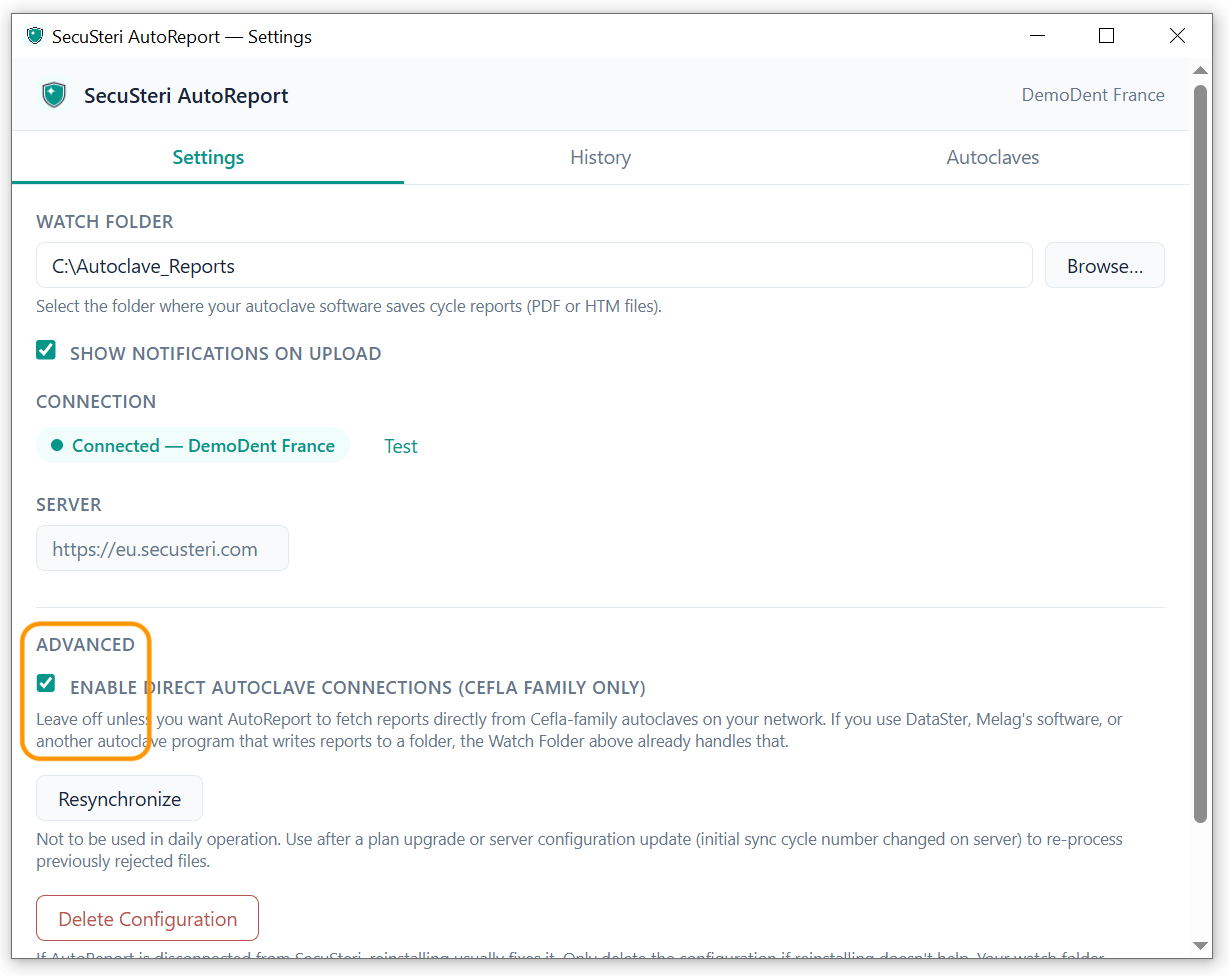
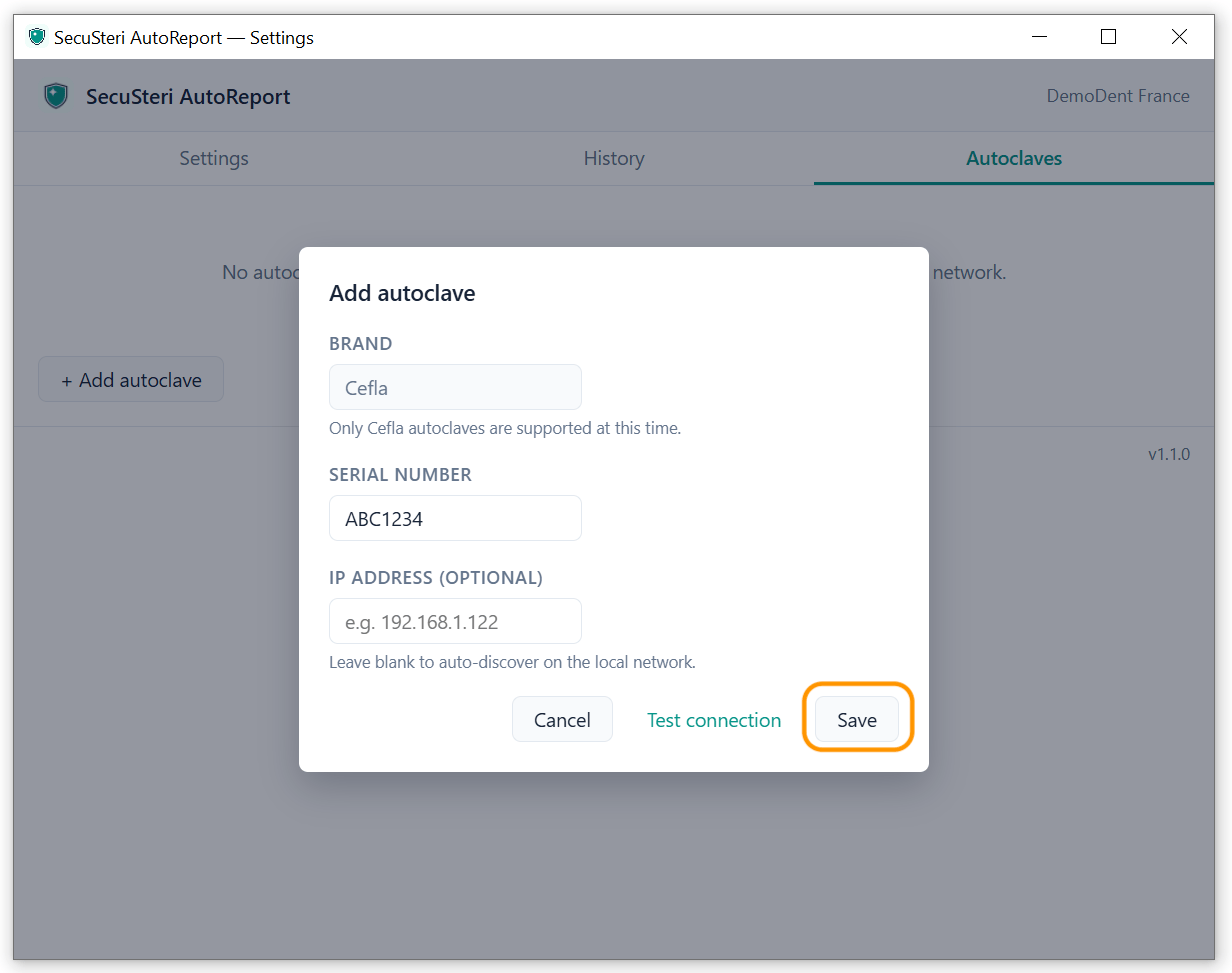
Autoclaves of the Cefla family (Castellini, Anthos) can hand their reports to AutoReport directly over your network, with no software from the vendor. Set your watch folder first — fetched reports are saved there. Then right-click the tray icon → Settings…, and under Advanced turn on Enable direct autoclave connections (Cefla family only); an Autoclaves tab appears. Click + Add autoclave, enter the serial number printed on the machine, leave the IP address blank so AutoReport finds the autoclave on your local network (or enter it if you know it), click Test connection, then Save. AutoReport then checks the autoclave every two minutes and picks up each new cycle. If it can't be reached — switched off overnight, say — AutoReport keeps retrying quietly and only tells you after ten failed attempts in a row. The autoclave and the PC must be on the same local network.
Troubleshooting
- Windows blocked the installer — is it safe?
- Yes. Windows shows this dialog for any installer signed with a certificate it doesn't already know, which is the case for SecuSteri AutoReport. Click More info, then Run anyway. If an IT policy blocks it, ask IT to approve the installer.
- The card in Organization settings still says the desktop app is not connected.
- AutoReport isn't running on that PC or can't reach the internet from it. Right-click the tray icon: the first line is its status — Watching, Offline — retrying, or an authentication error. AutoReport needs outbound HTTPS to eu.secusteri.com; a firewall or proxy may block it.
- A cycle has finished but nothing appeared in SecuSteri.
- Four normal causes: AutoReport is watching a different folder than the one the autoclave writes to; the autoclave's initial sync cycle number is higher than this cycle; the cycle is already in SecuSteri (same date and number on the same autoclave); or the file is in a format not yet recognized. Right-click the icon → Upload history… shows which. Unrecognized files still reach our team and are how new models get supported.
- What do the tray icon colors mean?
- Green: watching the folder and uploading. Grey: uploads paused. Amber: no folder chosen yet, or SecuSteri temporarily unreachable — it recovers on its own. Red: the key was revoked; download a fresh ZIP from Organization settings and reinstall.
- Does AutoReport work with a network folder?
- Yes — SMB shares and mapped drives both work. Picking one can take a few seconds while AutoReport checks it is reachable, and a full rescan every 90 seconds catches any file a network notification missed.
- Which autoclaves are supported?
- MELAG, W&H, Castellini, Anthos, Mocom and more. The one-report-by-hand check tells you for certain. Another brand: upload a report anyway — we add support and you'll hear from us.
- How do I move AutoReport to another PC?
- Uninstall AutoReport on the old PC (Windows Settings → Apps). On the new one, download a fresh ZIP from Organization settings and install as above — the same key works.
- Does AutoReport update itself?
- On Windows, yes — silently, once the PC has been idle for a few minutes, and it resumes watching your folder afterwards. On macOS, download again from Organization settings.
- Can I pause uploads?
- Right-click the icon → Pause uploads; Resume uploads from the same menu.
- My autoclave is a Castellini or Anthos — do I still need the vendor's software?
- No. AutoReport can read reports from it directly over your network; see the direct-connection section above.
Still stuck? Write to support@secusteri.com — we read every message.
See also
Try SecuSteri free for 30 days
Upload your first autoclave report by hand today — AutoReport takes over from the second one.